Linking your Chromebook to a TV using an HDMI cable enhances your experience by offering a larger display for streaming, gaming, and presentations. This guide provides detailed instructions to help you connect seamlessly and troubleshoot any issues that arise.
Introduction
Using HDMI to connect your Chromebook to a TV is a straightforward and effective way to extend your laptop’s functionality. This type of connection allows you to mirror your screen onto a larger display, providing an improved viewing experience for media and presentations. Before proceeding, ensure that you have the necessary equipment and understand the compatibility of your devices.
What You Need to Get Started
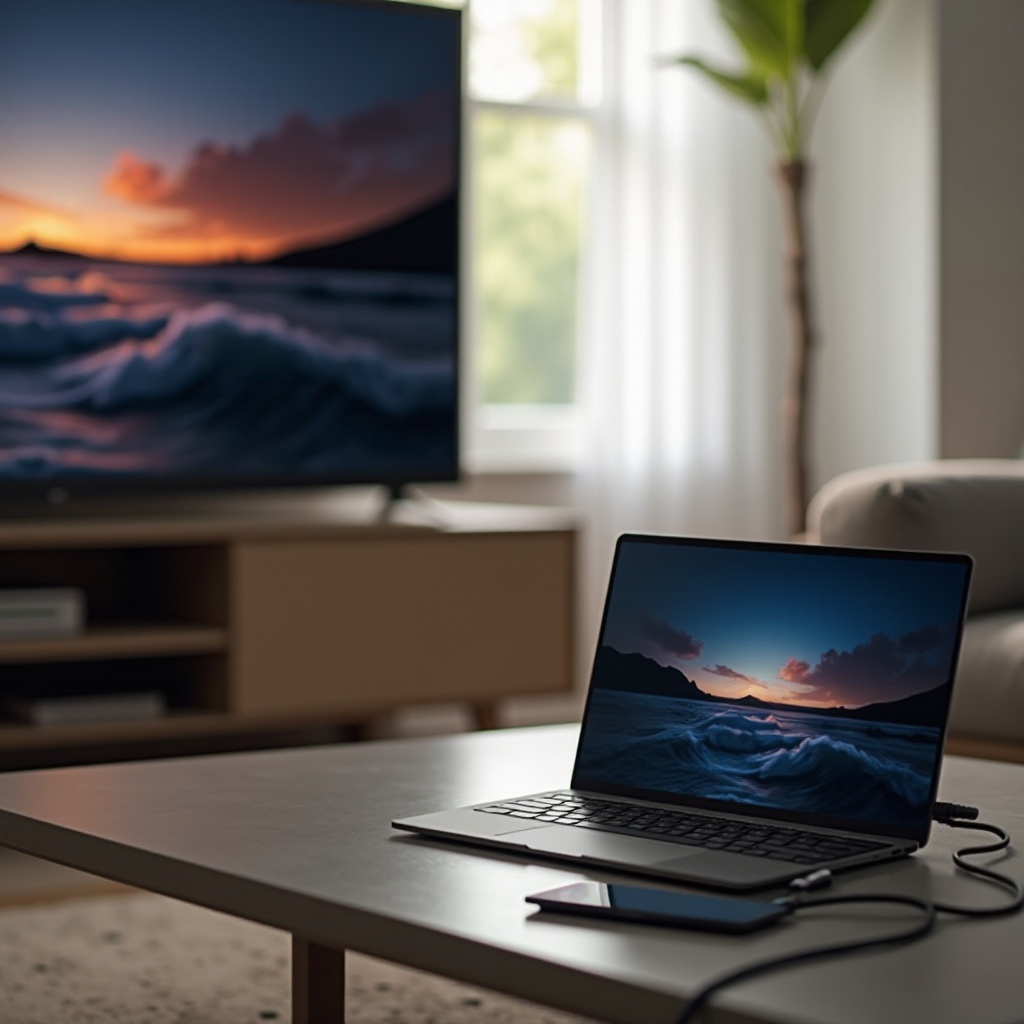
To connect your Chromebook to a TV using HDMI, you’ll require a few essential items:
- Essential Equipment and Cables:
- An HDMI cable is crucial for making the connection.
- Access to an HDMI port on your TV is required.
-
Depending on your Chromebook, you might need an adapter if it only has USB-C ports.
-
Checking Chromebook Port Compatibility:
- Newer Chromebooks typically feature USB-C ports, so a USB-C to HDMI adapter might be necessary.
- Chromebooks with an existing HDMI port simplify the process further.
With the required equipment ready, let’s dive into the connection process.
Step-by-Step Guide to Connecting Chromebook to TV
Now equipped, proceed with connecting your Chromebook to your TV. Follow these steps diligently:
- Preparing Your Devices:
- Power off both your Chromebook and your TV before making connections.
-
Arrange your devices so the HDMI cable can connect them without strain.
-
Making the Physical Connection:
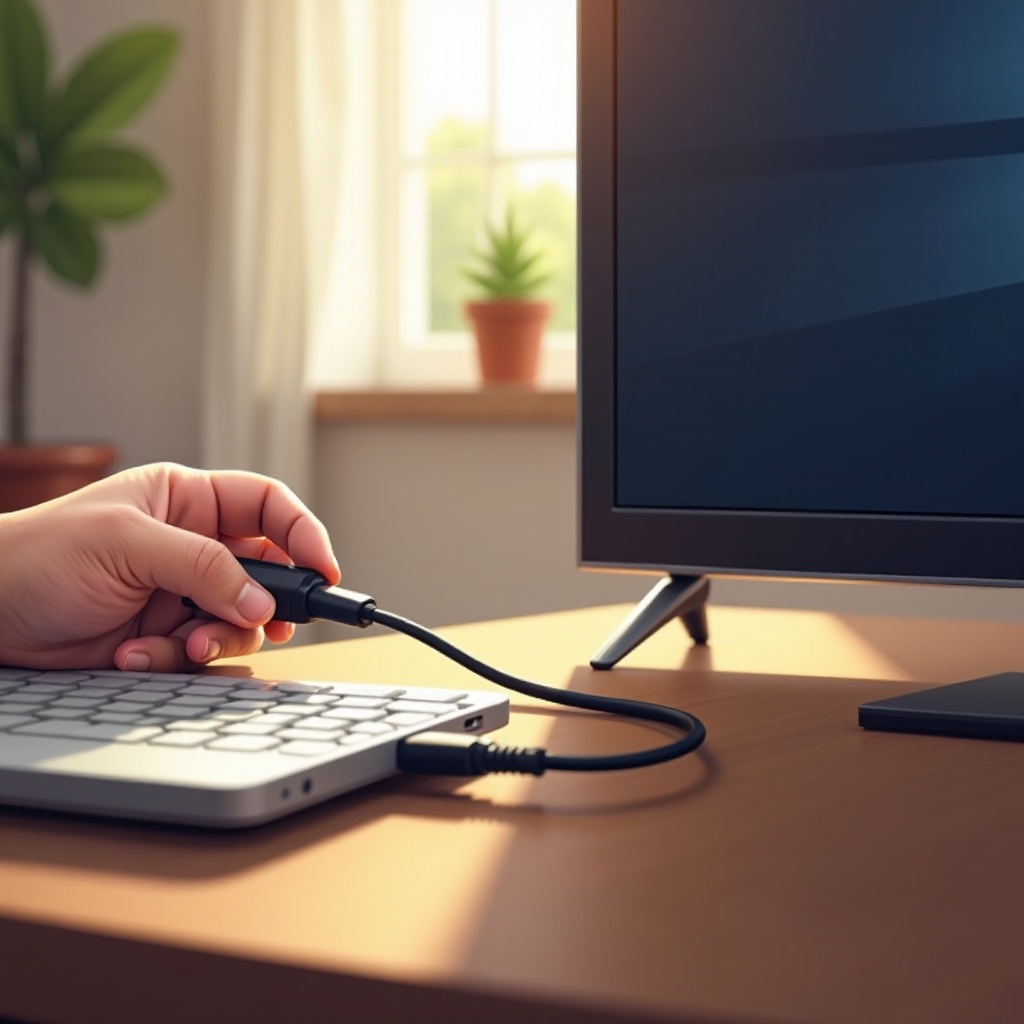
- Insert one end of the HDMI cable into your Chromebook (or adapter) and the other into the TV’s HDMI port.
-
Ensure robust and stable connections to establish a reliable link.
-
Selecting the Correct TV Input:
- Power on both devices.
- Use your TV remote to select the correct HDMI input source; typically, this involves using the ‘Source’ or ‘Input’ button to cycle through available inputs.
With these steps complete, your Chromebook screen should be visible on your TV. Now, let’s fine-tune your settings for optimal experience.
Optimizing Your Viewing Experience
Adjusting display and audio settings ensures the best experience post-connection:
- Adjusting Chromebook Display Settings:
-
Navigate to ‘Settings’, select ‘Device’, then ‘Displays’ to change resolution and scaling as needed.
-
Ensuring Audio Output Through TV:
- Under ‘Settings’, find ‘Sound’ and select your TV as the output device to enjoy audio through the TV speakers.
Once optimized, your multimedia experience should be seamless. However, issues might arise, so here’s how to troubleshoot.
Troubleshooting Common Issues
If you encounter problems, consider these solutions:
- No Signal Detection:
-
Double-check cable connections and ensure the TV’s input selection matches the port used.
-
Poor Resolution or Display Problems:
-
Return to ‘Displays’ settings and adjust resolution or scale until the display appears correct.
-
Sound Issues and Solutions:
- Verify sound settings to ensure the TV is chosen as the output. Switch cables if issues persist.
When these solutions don’t work, alternative connection methods might be needed.
Alternative Connection Options
If HDMI isn’t an option, consider wireless solutions:
- Exploring Wireless Alternatives like Chromecast:
- Chromecast devices connect your Chromebook to a TV wirelessly. Plug Chromecast into your TV and use the Google Home app for setup. Select ‘Cast’ on your Chromebook to stream.
These wireless alternatives provide flexibility and can simplify your setup, particularly if cables are not ideal.
Conclusion
Connecting your Chromebook to a TV through HDMI opens up a world of opportunities for media consumption, gaming, and presentations. By following this guide and optimizing your settings, you’ll enjoy a smooth and enhanced viewing experience. Keep alternatives in mind for different scenarios and ensure that your tech setup meets your personal needs efficiently.
Frequently Asked Questions
Can I connect my Chromebook to a non-HDMI TV?
Yes, you can use adapters such as HDMI to AV converters or devices like Chromecast for wireless streaming.
What should I do if the HDMI connection is not working?
Make sure all cables are properly connected and the correct input is selected on the TV. Test with different cables if issues persist.
Is an adapter necessary for all Chromebook models?
An adapter is needed if your Chromebook only has USB-C ports and no direct HDMI port is available.