Introduction
Sony headphones deliver outstanding sound quality and immersive features, making them a top choice for gamers seeking an enhanced audio experience. Connecting your Sony headphones to a PS5 allows you to dive deeper into your games, experiencing every sound detail with clarity. This guide will assist you in connecting Sony headphones to your PS5, exploring both wired and wireless methods, optimizing audio settings, and addressing common issues.
Understanding PS5 Audio Options
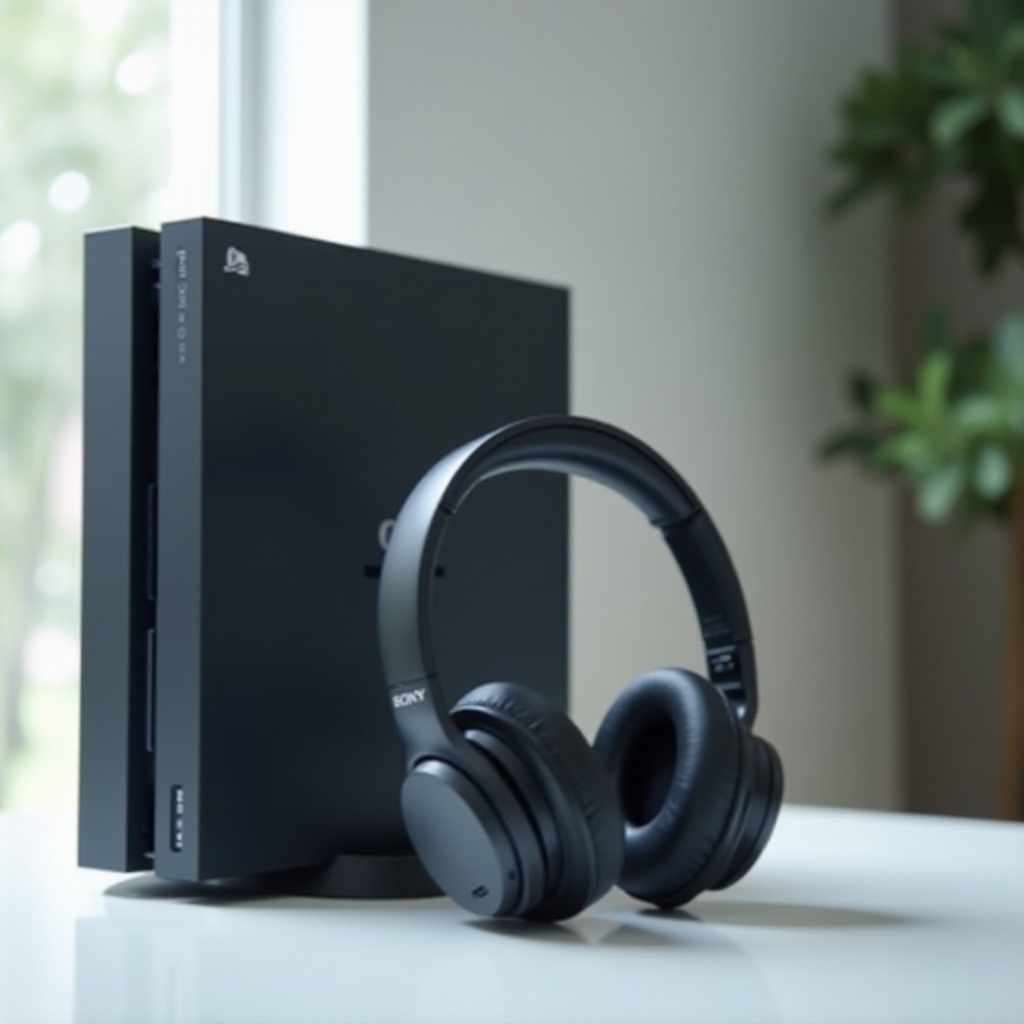
Before diving into connection methods, it’s essential to grasp the PS5’s audio capabilities. The console provides multiple audio outputs, including HDMI, optical audio, and the headphone jack on the DualSense controller. These options cater to both wired and wireless connections, although some limitations exist, especially regarding Bluetooth.
Transitioning into practical applications, let’s explore how to set up a wired connection.
Connecting Sony Headphones to PS5 via Wired Method
Connecting Sony headphones wired to the PS5 is a straightforward process that ensures stable audio.
- Check for Compatibility: Ensure your headphones have a 3.5mm audio jack.
- Connect to the DualSense Controller:
- Insert the 3.5mm audio plug into the controller’s headphone jack.
- Adjust Settings:
- Access the PS5 settings menu.
- Navigate to ‘Sound’ and choose ‘Audio Output.
- Set the output device to ‘Headset (Controller)’ for audio through the headphones.
This method provides a direct and reliable connection. For those preferring a wireless setup, continue reading.
Connecting Sony Headphones to PS5 Wirelessly
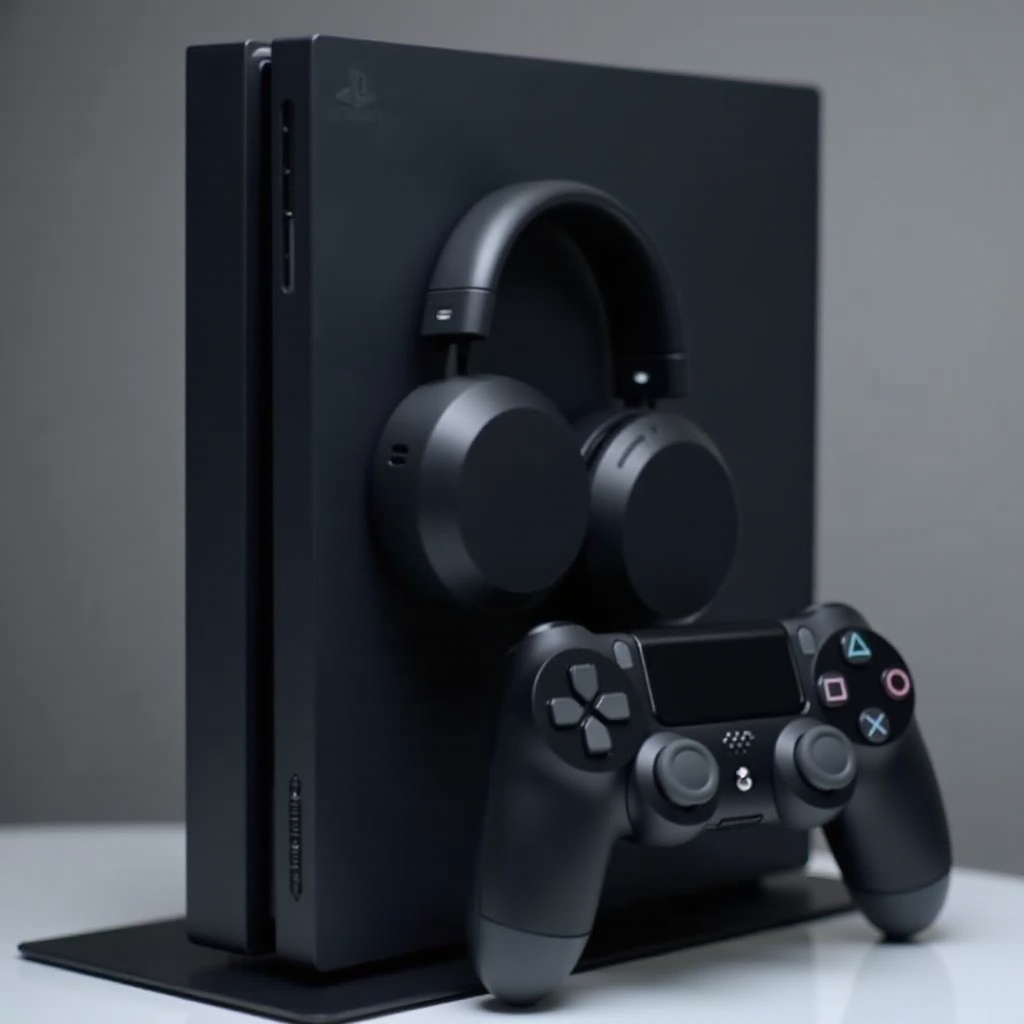
The PS5 lacks native Bluetooth support, presenting challenges for wireless audio connections. However, several effective solutions exist.
- Use a Bluetooth Transmitter:
- Connect a Bluetooth transmitter to the PS5’s USB port or optical output.
-
Set the transmitter to pairing mode and connect your headphones.
-
Connect Using a USB Dongle:
- Purchase a USB dongle designed for wireless audio with the PS5.
- Insert the dongle into the PS5’s USB port.
- Follow the pairing instructions.
Wireless connections provide mobility and freedom, although setup requires extra steps. Next, we’ll optimize audio settings for the best experience.
Optimizing Your PS5 Audio Settings
Fine-tuning audio settings can greatly enhance your gaming experience with Sony headphones. Here’s how to optimize settings:
- Access Audio Settings:
- Go to the settings menu and select ‘Sound.
-
Click on ‘Audio Output.
-
Enable 3D Audio:
-
Turn on ‘Enable 3D Audio’ for spatial sound perception.
-
Adjust Sound Profile:
- In ‘Audio Format (Priority),’ choose ‘Bitstream (Dolby)’ or ‘DTS.
- Customize the equalizer settings, if available, to suit your preferences.
With these adjustments, you can achieve rich, immersive sound quality. But issues might still arise, which we address next.
Troubleshooting Common Issues
You may face problems such as no sound or poor audio quality. Here are quick solutions:
- No Sound:
- Check your headphones are properly plugged in or paired.
- Verify the volume levels on both devices.
-
Confirm correct audio output settings.
-
Poor Audio Quality:
- Re-assess audio settings to ensure they match the headphones’ capabilities.
-
Remove any wireless interference.
-
Connection Failures:
- Reset both the headphones and any dongles or transmitters.
- Ensure all devices have the latest firmware updates.
These strategies should resolve most common issues. As we wrap up, here are some frequently asked questions regarding this topic.
Frequently Asked Questions
Can I connect my Sony Bluetooth headphones directly to the PS5?
No, direct Bluetooth connection isn’t supported. Use a Bluetooth transmitter or USB dongle instead.
What should I do if my headphones have high latency with the PS5?
Ensure the transmitter supports low-latency codecs and update your headphones’ firmware.
Are there recommended adapters for Sony headphones on PS5?
Choose USB dongles or transmitters compatible with PS5 that support low-latency audio.