
Experiencing lines on your phone screen can be both frustrating and concerning. Addressing this issue promptly is crucial to maintain your device’s functionality and prevent further complications. Whether the lines appear vertically, horizontally, or randomly across the screen, effective troubleshooting and potential solutions are available. Let’s explore how you can fix this issue with both DIY methods and professional help.
Introduction
Lines on your phone screen can result from multiple causes, ranging from hardware damage to software glitches. Identifying the root cause is essential to determine the most effective solution, thereby saving time and reducing unnecessary repairs or costs.

Understanding the Problem: What Causes Screen Lines?
To address screen lines effectively, one must understand their causes. The source may be either hardware-related or software-induced, influencing the approach you’ll take to remedy the situation.
Types of Screen Lines
Screen lines can manifest in various forms:
1. Vertical lines
2. Horizontal lines
3. Multi-colored lines
4. Grey or black lines
Identifying these variations assists in diagnosing the underlying issue more accurately.
Common Causes: Hardware vs. Software
Screen lines can arise due to:
1. Hardware issues such as damaged display cables, screen impact, or liquid intrusion.
2. Software problems including glitches following an update or interference from malfunctioning apps.
Understanding whether your issue is hardware or software-related will direct the next steps.
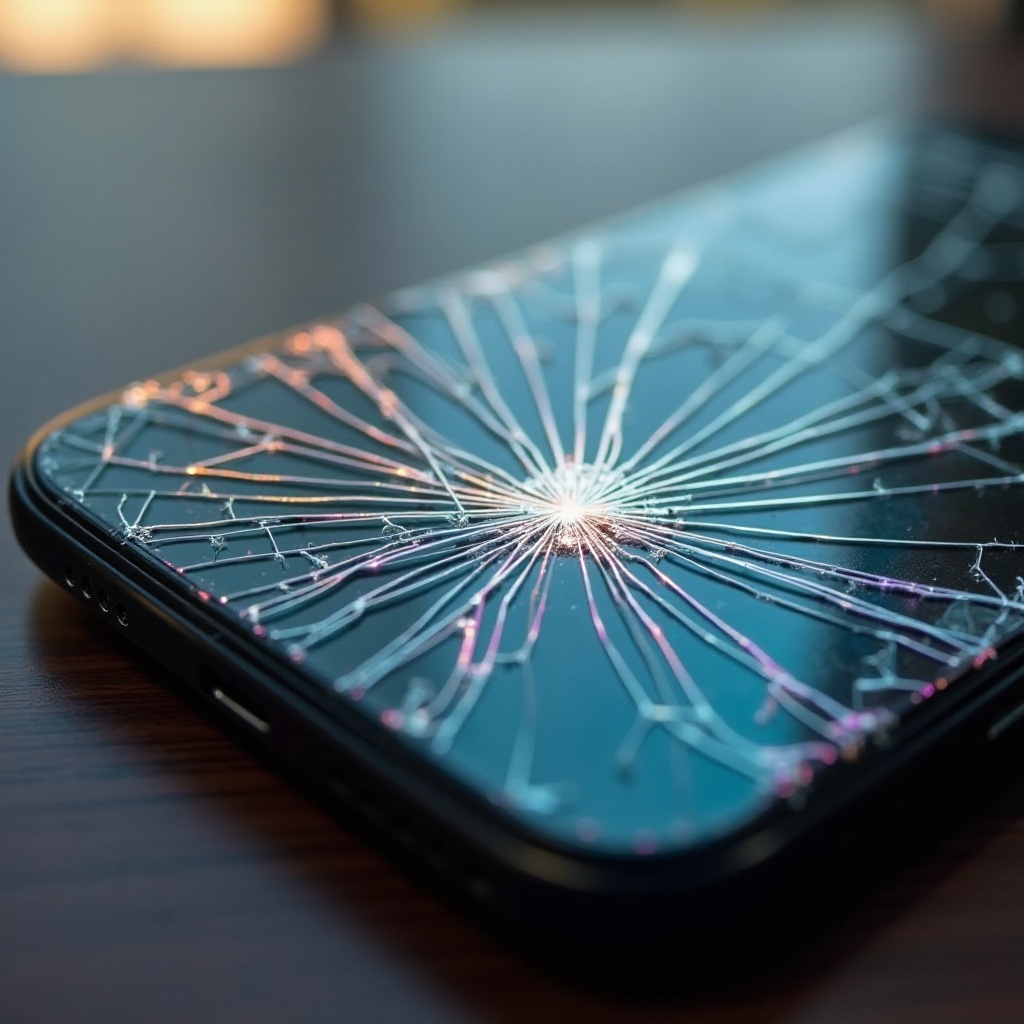
Initial Troubleshooting Steps
Prior to engaging in repairs, simple troubleshooting steps might reveal a quick fix.
Restart Your Phone
Restarting your phone can occasionally clear temporary glitches causing screen lines. To do this, turn off your device, wait a minute or two, and then power it back on.
Software Updates
Outdated software can affect screen performance. To check for updates:
1. Navigate to Settings on your device.
2. Go to Software Updates.
3. Select Download and Install if updates are available.
Safe Mode Check
Booting into Safe Mode can help determine if a third-party app is causing the issue:
1. Press and hold the Power button.
2. Long-press the Power Off option until Safe Mode appears.
3. Observe if the lines disappear while in Safe Mode.
These steps can clarify if your problem stems from software, helping you decide whether to proceed with further hardware investigation or not.
DIY Solutions for Minor Screen Line Issues
Should initial troubleshooting prove ineffective, consider these DIY methods for minor, hardware-related screen line issues.
Gentle Pressure Application
This technique can resolve some alignment issues with internal cables:
1. Turn off the device.
2. Apply gentle, even pressure using your fingers over the screen lines.
3. Restart the phone to check for changes.
Reseating Loose Cables
Loose display cables might be at fault:
1. Ensure your phone is powered off.
2. Remove the back cover if accessible.
3. Verify that display cables are securely connected.
4. Reassemble your phone and monitor the screen.
Applying these DIY methods can effectively resolve hardware-related issues if handled with care and precision.
Advanced DIY Fixes for Persistent Lines
If your efforts with basic DIY fixes remain unsuccessful, consider these advanced methods.
Factory Reset
As a last resort, a factory reset can resolve software-induced line issues:
1. Back up all important data.
2. Access Reset Options in Settings.
3. Opt for a Factory Reset and follow onscreen instructions.
Data Backup Importance
Pre-reset, ensure backup to protect your data by:
1. Connecting to Wi-Fi.
2. Utilizing built-in backup settings for contacts, photos, and files.
Using a Screen Diagnostic App
Screen diagnostic applications might test and rectify issues like dead pixels that contribute to screen lines:
1. Download a reliable app from your app store.
2. Run suggested diagnostics and follow recommendations.
Advanced fixes require caution but offer solutions before resorting to professional services.
Knowing When to Seek Professional Repair
If issues persist despite all efforts, professional repair may be necessary.
Diagnostic Signs for Professional Help
Consider professional repair if:
1. Lines persist after attempted fixes.
2. There’s additional damage like a cracked screen.
3. Touchscreen functions poorly or not at all.
Choosing a Reliable Repair Service
Select a trustworthy service provider by:
1. Checking online reviews and testimonials.
2. Examining warranty policies.
3. Comparing quotes and expertise.
Professional repair ensures expert handling, potentially restoring your device’s full functionality.
Preventative Measures for Future Screen Issues
Adopting preventive measures can help avoid future issues with your phone’s screen.
Protective Accessories
Invest in protective gear such as:
1. Tempered glass screen protectors.
2. Durable, shockproof phone cases.
Best Practices for Screen Care
Maintain your screen by:
1. Avoiding exposure to extreme temperatures.
2. Handling your phone with care near water or heights.
Implementing these preventive strategies can extend your phone’s screen lifespan and maintain its usability.

Conclusion
Understanding and fixing a broken phone screen with lines doesn’t have to be overwhelming. By following systematic troubleshooting and implementing the right fixes, you can often resolve the issue independently. When necessary, professional repair remains a robust option to restore your device fully. Proactive screen care encourages a longer-lasting display without recurrent issues. Remember, addressing the problem early reduces the risk of aggravating damage.
Frequently Asked Questions
Can screen lines be a temporary issue?
Yes, especially if caused by software anomalies or insufficient memory. Restarting often resolves temporary lines.
How much does professional repair cost on average?
It typically ranges from $70 to $200, depending on the model and extent of screen damage.
Will a factory reset always fix software-induced lines?
A factory reset can resolve some software-related issues, but it should be a last resort due to potential data loss.