Introduction
Google Nest devices are central to enhancing modern smart homes by providing automation and convenience. However, when they stop working, it throws a wrench into daily schedules. If you’re asking ‘Why is my Google Nest not working?’ this guide will assist in identifying the issue and provide guidance on how to resolve it. We’ll cover common problems, diagnostics, troubleshooting strategies, and what to do if you need professional help.

Common Issues with Google Nest Devices
Understanding the typical problems faced by Google Nest devices is crucial before jumping into solutions:
-
Connectivity Problems: These are often due to Wi-Fi interference or router issues, which might cause the device to go offline or act unresponsive.
-
Power Issues: Devices may not work properly if there’s a problem with the power outlet or the adapter.
-
Software Glitches: Outdated firmware or software errors can lead to malfunctioning, which might cause erratic behavior from the device.
Recognizing these issues sets the stage for effective problem-solving. Next, we’ll explore the steps necessary to diagnose these problems.
Diagnosing Your Google Nest Device
Correct diagnosis leads to effective solutions. Here’s how you can identify potential issues:
-
Checking Network Connections: Ensure your Wi-Fi is functioning well by seeing if other devices can connect. Test your router for functionality and check for any service outages in your vicinity.
-
Inspecting Power Supplies: Confirm that your device is plugged in securely. Test the power outlet using another device. Consider switching to a different power adapter if necessary.
-
Using Google Support Tools: The Google Home app offers various tools for diagnostics and troubleshooting. Ensure you take advantage of these resources to help identify potential issues.
A solid diagnosis is your pathway to efficient troubleshooting, which we will detail in the next section.
Step-by-Step Troubleshooting Guide
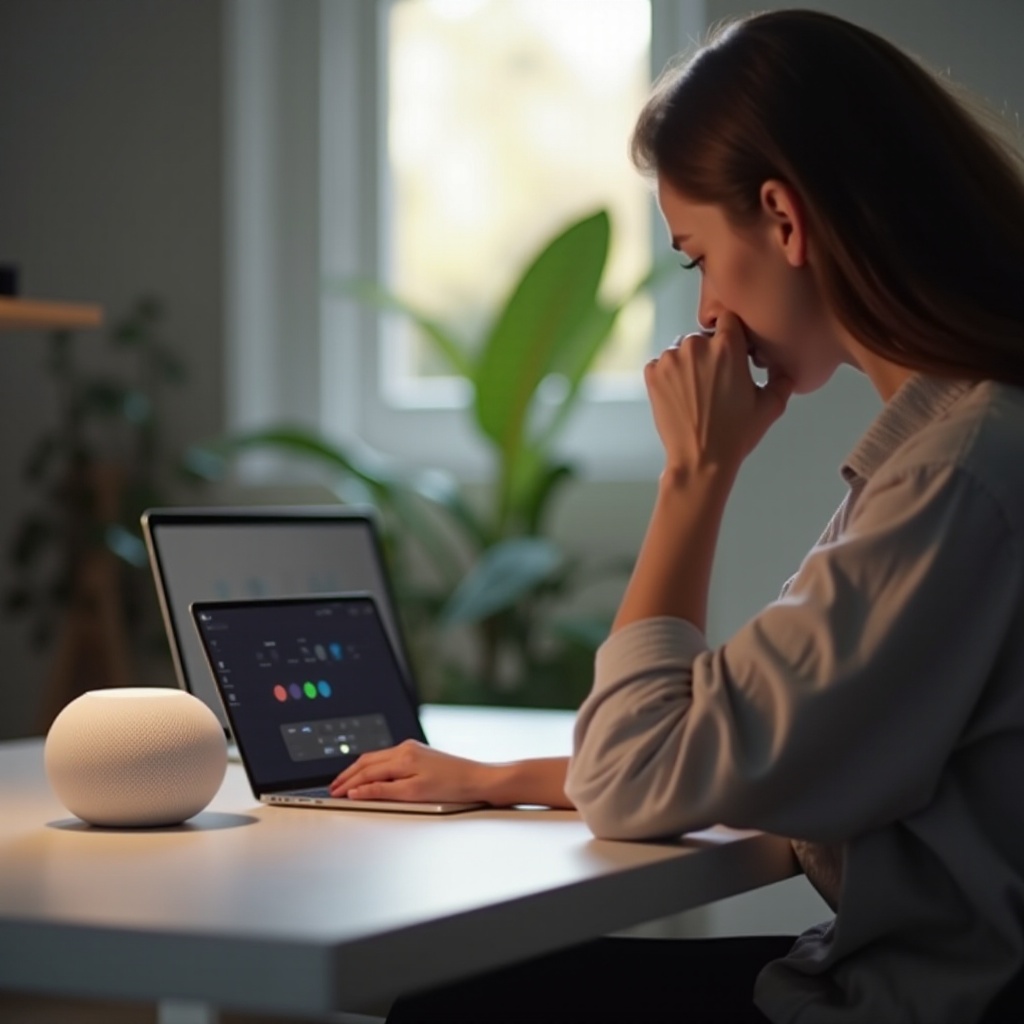
Following a methodical approach can solve most common Google Nest problems:
-
Restarting Your Google Nest Device: Begin with a simple restart. Unplug your device for about 10 seconds, then plug it back in and let it reboot.
-
Resolving Network Connectivity Issues:
- Verify the Wi-Fi settings in the Google Home app.
- Ensure the device is within range of your router.
-
Restart your router if required.
-
Fixing Power Problems:
- Try a different power outlet.
- If the power adapter seems faulty, replace it.
Completing these steps should enhance the reliability of your Google Nest. However, if issues persist, you may need to consider more advanced troubleshooting options.
Advanced Troubleshooting Options
For persistent problems, consider these advanced solutions:
-
Factory Reset Procedures: A factory reset restores your device to its original settings, often solving ongoing issues. Follow the instructions provided in the Google Home app or the user manual.
-
Using the Google Nest App for Diagnostics: The app can find diagnostics and potentially update your device’s firmware. Ensure your app is up to date to benefit from the latest features.
-
Configuring Advanced Network Settings: Your router’s settings may need adjustment for optimal performance. Modifying settings like channel selection or bandwidth can reduce Wi-Fi interference.
These steps should resolve most persistent issues, but professional support may be necessary for more complex problems.
When to Contact Professional Support
If troubleshooting has not resolved the issue, professional help may be warranted:
-
Determining the Severity of the Issue: If the device is still malfunctioning despite a factory reset, the issue may be serious and require professional attention.
-
Google Support and Warranty Services: Reach out to Google support for further assistance. If your device is still under warranty, you may qualify for repair or replacement.
By employing these options, you can ensure your Google Nest remains a dependable part of your smart home setup.
Conclusion
Troubleshooting your Google Nest doesn’t have to be overwhelming. By following these steps, you can often solve problems independently, from connectivity to software glitches. Remember, professional help is just a call away to preserve your device’s efficiency and functionality.
Frequently Asked Questions
How do I reset my Google Nest device if it’s not responding?
To reset, press and hold the button on your Google Nest until it restarts. For specific instructions, consult the Google Home app or the device’s manual.
What should I do if my Google Nest isn’t connecting to Wi-Fi?
Check your Wi-Fi settings, ensure the router is functional, and restart your Google Nest. Consider reducing interference by adjusting your router settings.
Can a power surge affect my Google Nest device’s performance?
Yes, power surges can damage the adapter or the device itself, leading to performance issues. To prevent this, use surge protectors.