Introduction
Efficient integration of Android apps into Windows 11 has led to many users installing the Google Play Store on their systems. However, situations may arise where removing this app store becomes necessary. Whether to safeguard system security or enhance PC performance, knowing how to uninstall the Play Store is crucial. This article will guide you through the straightforward steps required to complete the uninstallation.
Firstly, understanding the need to uninstall the Play Store and preparing your system can prevent potential errors. Let’s begin by discussing the necessary steps to prepare your system for a successful uninstallation.
Prerequisites Before Uninstallation
To ensure a smooth uninstallation process, preparation is key. Before proceeding, follow these essential steps to prepare your computer effectively.
-
Backup Important Data: Ensure all crucial data linked to apps from the Play Store is backed up. Doing this minimizes the risk of losing vital information during uninstallation.
-
Check for Permissions and Requirements: Verify that you have administrative rights on your Windows 11 system, as these permissions are necessary to uninstall applications.
Now that you have prepared your system adequately, let’s move on to the first uninstallation method via Windows 11 settings.
Uninstalling Play Store via Windows 11 Settings
Removing the Google Play Store through the Windows 11 settings is a straightforward process. Here is a step-by-step guide:
-
Open Settings: Click on the Start Menu and select the ‘Settings’ gear icon.
-
Navigate to Apps & Features: Click on ‘Apps’ in the sidebar and select ‘Apps & Features.
-
Find Google Play Store: Scroll through the list of installed applications until you find ‘Google Play Store.
-
Uninstall the Play Store: Click on the Play Store listing, then select ‘Uninstall.’ Follow the prompts to complete the removal.
Should this method not suit your needs, there is an alternative: using the Command Prompt, which provides another effective way to uninstall the Play Store.
Using Command Prompt for Uninstallation
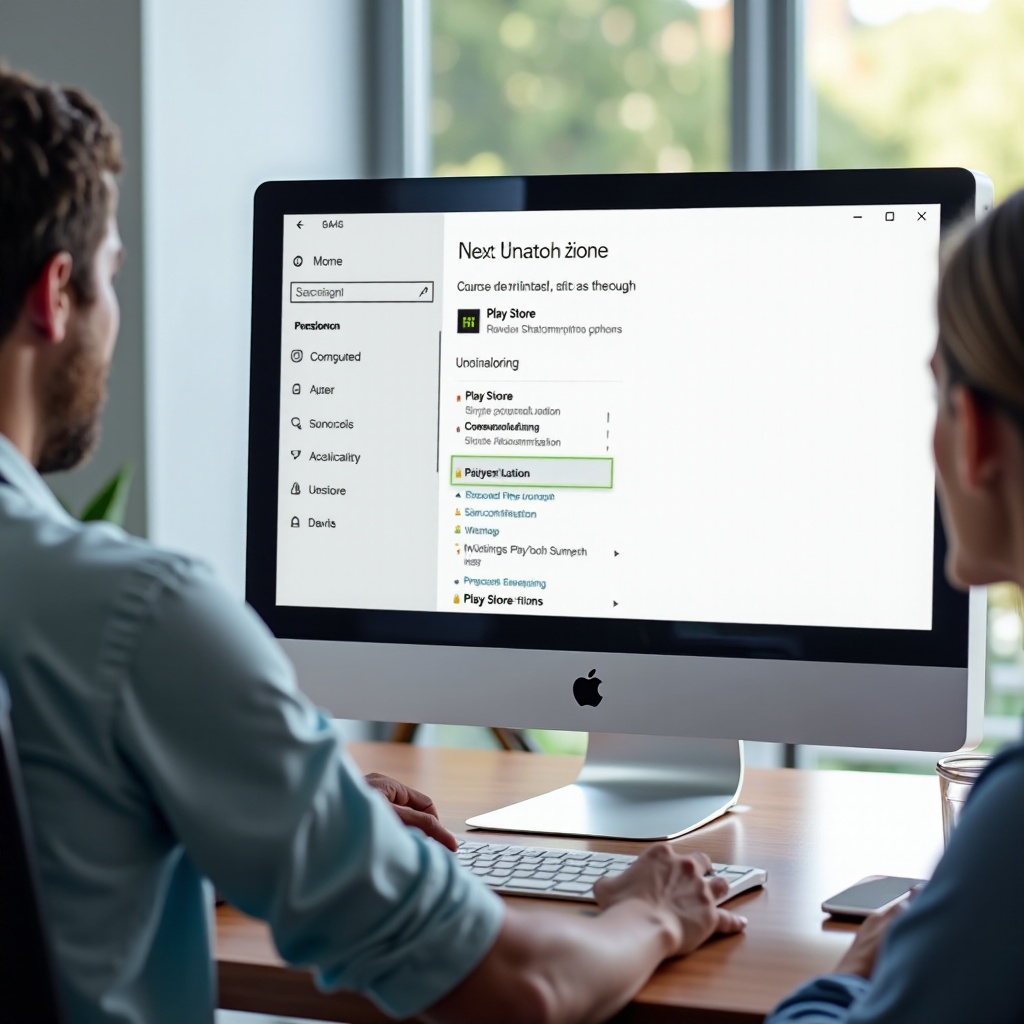
For those who prefer a more technical approach, the Command Prompt offers a robust solution. Follow these steps to uninstall the Play Store using Command Prompt:
-
Open Command Prompt: Type ‘cmd’ in the Windows search bar, right-click on ‘Command Prompt,’ and select ‘Run as administrator.
-
Locate Installed Packages: Enter the command
adb shell pm list packagesto display all packages installed on your system, including the Play Store’s package name. -
Remove the Play Store: Type the command
adb shell pm uninstall -k --user 0 com.android.vendingto uninstall the Play Store application.
This approach offers a precise uninstallation method. With the application now uninstalled, it is crucial to address any issues you might encounter during these processes.
Troubleshooting Common Issues
Even with precise actions, challenges may arise. Here are a few common issues and their solutions:
-
Application Not Visible: If the Play Store does not appear among installed apps, confirm it was properly installed. Sometimes, visibility issues indicate an incomplete initial setup.
-
Uninstallation Errors: Should errors occur while attempting to uninstall, ensure that you have full administrative rights and that no applications are currently using the Play Store.
Successfully navigating these challenges ensures a smooth uninstallation. After removal, optimizing your Windows 11 for better performance is a critical step.
Post-Uninstallation: Optimizing Windows 11
With the Play Store now uninstalled, focus on maintaining peak system performance. Follow these steps to optimize your Windows 11:
-
Free Up System Resources: Use the Disk Cleanup tool to remove temporary files or unused applications, freeing up valuable system resources.
-
Consider Alternative App Stores: Explore other app ecosystems that are fully compatible with Windows 11. The Microsoft Store offers a wide array of applications that can serve your needs just as effectively.
Successfully optimizing your system will ensure a seamless user experience post-uninstallation, reinforcing the benefits of removing the Play Store.
Conclusion
Removing the Play Store from your Windows 11 system can improve security and enhance performance. By preparing adequately, executing the uninstallation through settings or the Command Prompt, and optimizing your system thereafter, you lay the foundation for a smooth and efficient computing environment.
Frequently Asked Questions
Can I reinstall the Play Store on Windows 11 after uninstalling it?
Yes, you can reinstall the Play Store by setting up the necessary files for Android apps using the Windows Subsystem for Android.
Will uninstalling the Play Store affect other apps on my system?
Uninstalling the Play Store itself shouldn’t directly affect other apps unless they specifically rely on Play Store services.
Are there any risks involved in using the Command Prompt for uninstallation?
Using the Command Prompt is safe when following instructions accurately, though errors in commands can lead to system issues.